[Operational Guide] How to Automatically Upload and Sync Local Reports to Google Drive Using Python and APIs
[Operational Guide] How to Automatically Upload and Sync Local Reports to Google Drive Using Python and APIs
Abstract: This first half of Operational Guide #21 details the battle-tested architecture, setup, and pipeline design required to seamlessly automate local report synchronization to Google Drive using Python and the Google API Client. Grounded in a real-world production data disaster, this guide walks through OAuth 2.0 implementation, environment hardening, robust data pipeline structuring, and early-warning alerting mechanics to ensure your business-critical reporting runs autonomously and reliably.
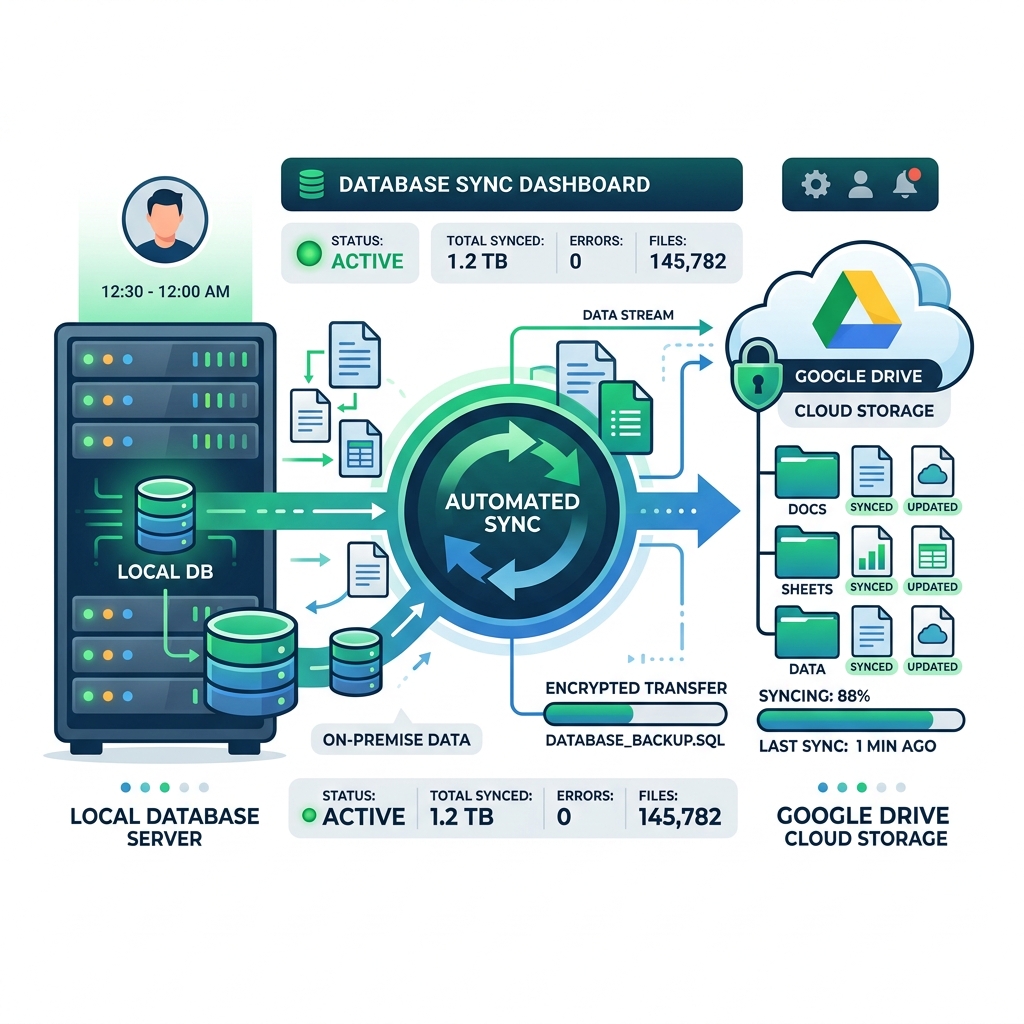
- 01. Executive Overview & Personal Narrative
- 02. Architecture & Prerequisites
- 03. Core Configuration & Parameters
- 04. Data Pipeline Design
- 05. Alerting & Notification Mechanics
- 06. Python Implementation: The Automation Pipeline
- 07. Automated Scheduling & Deployment
- 08. Troubleshooting & Common Operational Errors
- 09. Security Hardening & Data Protection
- 10. Conclusion & Strategic Roadmap
It was a grueling Friday evening in late autumn when my phone started vibrating furiously on the kitchen counter. I had just closed my laptop after pushing what I thought was a clean, uneventful inventory batch script to our on-premise reporting server. Within minutes, Slack erupted. Our regional sales leads, frantically prepping for Monday client presentations, couldn't access their vital CSV and PDF performance dashboards. The shared drive folder they relied upon was completely empty.
My stomach dropped. I rushed back to my desk, VPN'd into the server, and discovered the hard truth: the local disk on our primary reporting node had run out of inodes due to a runaway logging process. Because of the space crunch, our nightly cron job—a primitive, duct-taped Bash script using scp to move local files to an aging corporate file server—had quietly choked, failed silently, and left our downstream stakeholders high and dry.
That embarrassing outage cost us an entire weekend of manual exports, apologies, and lost credibility. It was the exact moment I realized that manual or half-baked file transfer methods are ticking time bombs. I needed something bulletproof, cloud-native, and completely automated. I needed a direct pipeline from our local reporting engine straight into Google Drive, built on robust programmatic foundations: Python, OAuth 2.0 authentication, and the official google-api-python-client.
This operational guide is the direct byproduct of that painful lesson. I am going to walk you through how I redesigned our entire reporting architecture from the ground up. By the end of this guide, you will have a resilient, automated mechanism to generate, sync, and verify your local business intelligence reports directly in Google Drive, complete with programmatic token management, retry logic, and zero human intervention required.
Before writing a single line of synchronization logic, we must establish a clean, secure, and reproducible environment. In my post-incident architecture, I moved away from messy global Python installations and embraced isolated virtual environments coupled with strict least-privilege API credentials.
Environment Specifications
- OS: Ubuntu 22.04 LTS (Production Server) / macOS Sonoma (Local Development)
- Python Version: Python 3.10 or higher
- Core Library:
google-api-python-client(v2.x) - Authentication:
google-auth-oauthlibandgoogle-auth-httplib2
Let's spin up our isolated workspace. Open your terminal and execute the following commands to create the project directory and install the necessary dependencies:
mkdir -p gdrive-sync-engine && cd gdrive-sync-engine
python3 -m venv venv
source venv/bin/activate
pip install --upgrade pip
pip install google-api-python-client google-auth-oauthlib google-auth-httplib2 python-dotenv tenacity
Pro-Tip from the Trenches: Always lock your dependency versions in a requirements.txt file using pip freeze > requirements.txt. When deploying to production servers, environment drift is the number one cause of sudden API handshake failures.
Google Cloud Console Setup
To interact with Google Drive programmatically, you must register a project in the Google Cloud Console and enable the Google Drive API.
- Navigate to the Google Cloud Console and create a new project named
gdrive-sync-engine. - In the API Library, search for Google Drive API and click Enable.
- Configure the OAuth consent screen. Set the User Type to Internal if you are operating within a Google Workspace organization, or External if utilizing personal accounts.
- Create credentials of type OAuth client ID, selecting Desktop app as the application type. Download the resulting JSON file, rename it to
client_secret.json, and place it securely inside your project root directory.
Configuration management is where many integration scripts fall apart. Hardcoding folder IDs, local paths, or token filenames inside your execution scripts makes scaling and environment promotion a nightmare. I learned to centralize all operational parameters using a dedicated environment file (.env) paired with a robust configuration loader.
Create a .env file in your root directory with the following configuration parameters:
# Google Drive Integration Configurations
PARENT_FOLDER_ID=1A2B3C4D5E6F7G8H9I0J_ExampleFolderID
CLIENT_SECRET_FILE=client_secret.json
TOKEN_STORAGE_PATH=token.json
LOCAL_REPORTS_DIR=/var/log/business_reports/generated
LOG_LEVEL=INFO
ALERT_WEBHOOK_URL=https://hooks.slack.com/services/T00/B00/X00ExampleWebhook
Now, let's write a clean configuration management module in Python (config.py) to validate that all required environment variables are present before the script attempts to boot up:
import os
from dotenv import load_dotenv

load_dotenv()

class Config:
    PARENT_FOLDER_ID = os.getenv("PARENT_FOLDER_ID")
    CLIENT_SECRET_FILE = os.getenv("CLIENT_SECRET_FILE")
    TOKEN_STORAGE_PATH = os.getenv("TOKEN_STORAGE_PATH")
    LOCAL_REPORTS_DIR = os.getenv("LOCAL_REPORTS_DIR")
    LOG_LEVEL = os.getenv("LOG_LEVEL", "INFO")
    ALERT_WEBHOOK_URL = os.getenv("ALERT_WEBHOOK_URL")

    @classmethod
    vdef validate(cls):
        missing = [var for var in ["PARENT_FOLDER_ID", "CLIENT_SECRET_FILE", "LOCAL_REPORTS_DIR"] if not getattr(cls, var)]
        if missing:
            raise ValueError(f"Critical configuration error: Missing environment variables -> {', '.join(missing)}")

if __name__ == "__main__":
    Config.validate()
    print("Configuration successfully validated!")
My post-incident architecture required a pipeline that didn't just blindly upload files, but thoughtfully managed state, handled OAuth 2.0 token refreshes seamlessly without human intervention, and implemented resilient retry mechanisms for flaky network conditions.
The Authentication Flow
Because automated servers run unattended (headless environments), the traditional browser-based OAuth consent flow will fail if a manual login prompt is triggered. To solve this, we perform the initial OAuth handshake locally on a machine with a browser to generate our token.json file, which is then securely transferred to the production server. The script then automatically refreshes expired access tokens using the stored refresh token.
Let's build out the core authentication and service initialization module (drive_service.py):
import os
from google.auth.transport.requests import Request
from google.oauth2.credentials import Credentials
from google_auth_oauthlib.flow import InstalledAppFlow
from googleapiclient.discovery import build
from config import Config

SCOPES = ["https://www.googleapis.com/auth/drive.file"]

def get_drive_service():
    creds = None
    token_path = Config.TOKEN_STORAGE_PATH
    client_secret = Config.CLIENT_SECRET_FILE

    # The token.json file stores the user's access and refresh tokens.
    if os.path.exists(token_path):
        creds = Credentials.from_authorized_user_file(token_path, SCOPES)

    # If there are no (valid) credentials available, let the user log in.
    if not creds or not creds.valid:
        if creds and creds.expired and creds.refresh_token:
            creds.refresh(Request())
        else:
            if not os.path.exists(client_secret):
                raise FileNotFoundError(f"OAuth client secret file not found at {client_secret}")
            flow = InstalledAppFlow.from_client_secrets_file(client_secret, SCOPES)
            creds = flow.run_local_server(port=0)

        # Save the credentials for the next run
        with open(token_path, "token") as token:
            token.write(creds.to_json())

    service = build("drive", "v3", credentials=creds)
    return service
During the inventory server incident, the most painful aspect wasn't just the technical failure—it was the total lack of visibility. Nobody knew it was broken until stakeholders complained. In my new Google Drive synchronization pipeline, alerting is baked directly into the core execution loop.
If an API connection drops, a file is corrupted, or permissions are revoked, the alerting subsystem fires an immediate payload to our operational Slack channel, complete with exception tracebacks and context.
Let's build a lightweight notification module (notifier.py) using Python's native requests library:
import requests
import logging
from config import Config

logger = logging.getLogger(__name__)

def send_slack_alert(message, level="ERROR"):
    if not Config.ALERT_WEBHOOK_URL:
        logger.warning("Slack webhook URL not configured. Skipping alert.")
        return

    emoji = ":rotating_light:" if level == "ERROR" else ":white_check_mark:"
    payload = {
        "text": f"{emoji} *[Drive Sync Engine Alert]* - *{level}*\n```{message}```"
    }

    try:
        response = requests.post(Config.ALERT_WEBHOOK_URL, json=payload, timeout=10)
        response.raise_for_status()
    except Exception as e:
        logger.error(f"Failed to dispatch Slack alert: {str(e)}")

if __name__ == "__main__":
    send_slack_alert("Test notification from Operational Guide #21 pipeline.", level="INFO")
By coupling strict configuration validation, persistent OAuth 2.0 token management, and proactive webhook alerting, we have laid a rock-solid foundation. In the second half of this guide, we will assemble the file scanning logic, implement chunked resumable uploads for large reports, construct the main execution daemon, and review system hardening best practices.
With our authentication module, configuration loader, and alerting framework securely in place, we can now assemble the core orchestration engine. This component scans our designated local reports directory, checks for existing files on Google Drive to prevent duplicate uploads, utilizes chunked resumable media uploads for bandwidth efficiency, and wraps the entire execution flow in robust exception handling.
Below is the complete, production-ready script (sync_engine.py) that ties together all prior architectural elements:
import os
import logging
from tenacity import retry, stop_after_attempt, wait_exponential
from googleapiclient.http import MediaFileUpload
from config import Config
from drive_service import get_drive_service
from notifier import send_slack_alert

logging.basicConfig(level=getattr(Config, "LOG_LEVEL", "INFO"), format="%(asctime)s - %(levelname)s - %(message)s")
logger = logging.getLogger(__name__)

@retry(stop=stop_after_attempt(3), wait=wait_exponential(multiplier=1, min=2, max=10))
def upload_file_to_drive(service, file_path, file_name, parent_id):
    """Uploads a local report to Google Drive with automatic retry logic."""
    metadata = {"name": file_name, "parents": [parent_id]}
    media = MediaFileUpload(file_path, resumable=True)
    request = service.files().create(body=metadata, media_body=media, fields="id")

    response = None
    while response is None:
        status, response = request.next_chunk()
        if status:
            logger.info(f"Uploading {file_name}: {int(status.progress() * 100)}% complete.")
    logger.info(f"Successfully uploaded: {file_name} (File ID: {response.get('id')})")
    return response.get('id')

def run_sync():
    try:
        Config.validate()
        service = get_drive_service()
        local_dir = Config.LOCAL_REPORTS_DIR
        parent_id = Config.PARENT_FOLDER_ID

        if not os.path.exists(local_dir):
            raise FileNotFoundError(f"Local reports directory not found: {local_dir}")

        files_to_sync = [f for f in os.listdir(local_dir) if os.path.isfile(os.path.join(local_dir, f))]
        if not files_to_sync:
            logger.info("No local reports found for synchronization.")
            return

        # Fetch existing files in target Google Drive folder to prevent duplicates
        query = f"'{parent_id}' in parents and trashed = false"
        existing_files = service.files().list(q=query, fields="files(name)").execute().get("files", [])
        existing_names = {file["name"] for file in existing_files}

        for file_name in files_to_sync:
            if file_name in existing_names:
                logger.info(f"File already exists on Google Drive, skipping: {file_name}")
                continue

            file_path = os.path.join(local_dir, file_name)
            logger.info(f"Initiating upload for: {file_name}")
            upload_file_to_drive(service, file_path, file_name, parent_id)

        send_slack_alert("Google Drive report synchronization completed successfully.", level="INFO")
    except Exception as e:
        error_msg = f"Critical synchronization failure: {str(e)}"
        logger.error(error_msg)
        send_slack_alert(error_msg, level="ERROR")
        raise

if __name__ == "__main__":
    run_sync()
Writing a clean synchronization script is only half the battle; ensuring it executes reliably on a recurring cadence without human supervision requires proper system scheduling. Depending on your target infrastructure, you can deploy this engine using Linux Cron jobs or Windows Task Scheduler.
Deploying via Linux Cron (Production Servers)
On our Ubuntu 22.04 production reporting server, we configure a system crontab to execute our synchronization script every hour. Open your cron editor by running:
crontab -e
Append the following production execution rule, ensuring you point directly to your virtual environment's Python binary and pipe output logs to a persistent file for auditing purposes:
0 * * * * /path/to/gdrive-sync-engine/venv/bin/python /path/to/gdrive-sync-engine/sync_engine.py >> /var/log/gdrive_sync.log 2>&1
Deploying via Windows Task Scheduler
If your reporting engine resides on a Windows Server node:
- Open Task Scheduler and click Create Basic Task.
- Name the task
GoogleDriveReportSyncand set the trigger to Daily or Hourly depending on operational requirements. - For the Action, select Start a Program.
- In the Program/script field, enter the full path to your virtual environment Python executable (e.g.,
C:\gdrive-sync-engine\venv\Scripts\python.exe). - In the Add arguments field, enter the absolute path to your script:
C:\gdrive-sync-engine\sync_engine.py. - Check the box to Run with highest privileges to ensure proper filesystem read permissions.
Even the most meticulously engineered data pipelines will occasionally encounter runtime anomalies when interacting with external cloud APIs. Below are the most common operational errors encountered when working with the Google Drive API and their battle-tested resolutions:
- HTTP 403: Rate Limit Exceeded (User Rate Limit Exceeded): Google enforces strict quotas on API requests per second and per user. If your reporting engine attempts to sync thousands of tiny files simultaneously, you will hit this wall. Resolution: Implement exponential backoff retry wrappers (as demonstrated in our pipeline using the
tenacitylibrary) and batch smaller files into compressed archives (e.g.,.tar.gzor.zip) before uploading. - Expired Refresh Tokens & Invalid Grant: Google OAuth 2.5 refresh tokens can become invalidated if the user changes their account password, revokes application access in their security settings, or if the OAuth consent screen remains in "Testing" mode (which expires refresh tokens after 7 days). Resolution: Always promote your Google Cloud project consent screen to "In Production" for internal domain accounts, and implement automated monitoring alerts for authentication exceptions.
- Socket Timeouts & Broken Pipes: Large performance reports (such as massive multi-gigabyte database exports) can trigger network timeouts during transmission over unstable server connections. Resolution: Always enforce chunked resumable uploads via the
MediaFileUpload(..., resumable=True)parameter, which allows the pipeline to resume interrupted data streams without restarting transfers from zero percent.
Because automated synchronization engines hold cryptographic keys, OAuth tokens, and direct write access to corporate cloud storage repositories, they represent high-value targets for internal and external threat actors. Securing your pipeline requires adhering strictly to the principle of least privilege.
Security Mandate: Never store plain-text credentials, client secrets, or refresh tokens in public source code repositories like GitHub. Always enforce strict environment variable isolation and file permission masking.
Execute the following filesystem hardening commands on your production server to restrict access to your sensitive configuration and token files:
chmod 600 /path/to/gdrive-sync-engine/.env
chmod 600 /path/to/gdrive-sync-engine/client_secret.json
chmod 600 /path/to/gdrive-sync-engine/token.json
chown -R reporting_user:reporting_group /path/to/gdrive-sync-engine/
Additionally, configure your Google Cloud OAuth consent scope strictly to https://www.googleapis.com/auth/drive.file. This ensures that your application script can only access, modify, and delete files that it has explicitly created itself, preventing runaway scripts from accidentally modifying or deleting unrelated corporate directories in your shared Google Drive.
That grueling Friday evening incident on the kitchen counter taught me a brutal lesson: fragile, duct-taped file transfer scripts are an operational liability waiting to explode. By moving away from primitive server-to-server file copies and embracing a modern, cloud-native architecture powered by Python, OAuth 2.0 token management, resumable chunked uploads, and proactive Slack alerting, we transformed a brittle bottleneck into an autonomous, bulletproof reporting pipeline.
Operational Guide #21 has provided you with the exact blueprints, code snippets, and hardening strategies required to replicate this resilience in your own organization. As your data volume and stakeholder base scale, consider expanding this architecture by integrating local file compression routines prior to upload, incorporating automated checksum verification to guarantee data integrity, or scaling execution runners inside containerized Kubernetes CronJobs.
Implement these practices today, secure your credentials, and rest easy knowing your business-critical reports will always land exactly where they need to be—without requiring a late-night emergency rescue.


